Camera and microphone not working in mac
If your camera or microphone isn’t working in Lessonspace, even though you have allowed access in Chrome or Firefox, your Mac’s system settings may be blocking it. Mac devices have additional privacy controls which can override browser permissions.
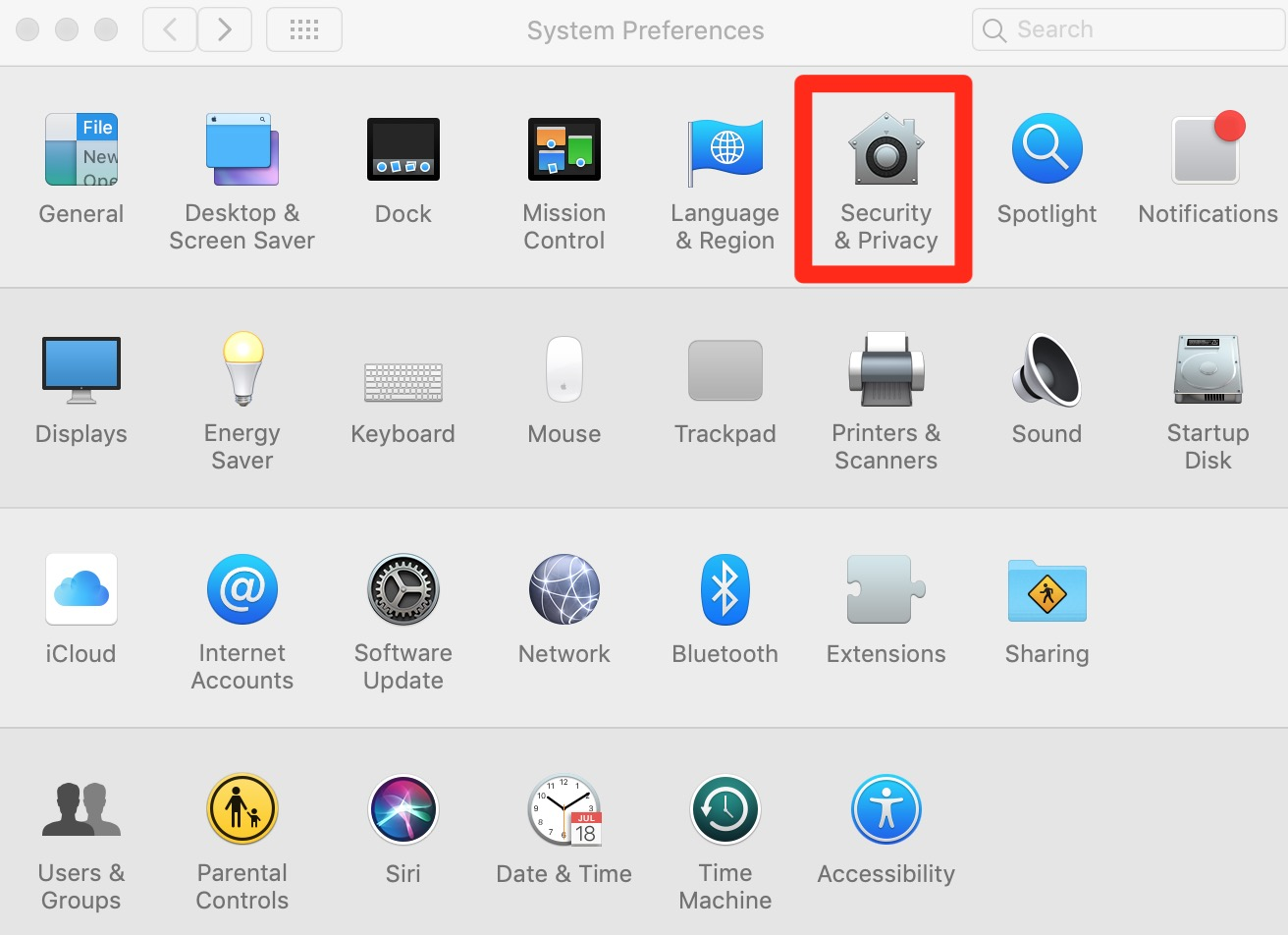
To check this, click the Apple logo in the top left corner of your screen and select System Preferences (or System Settings). Then click Security & Privacy and open the Privacy tab.
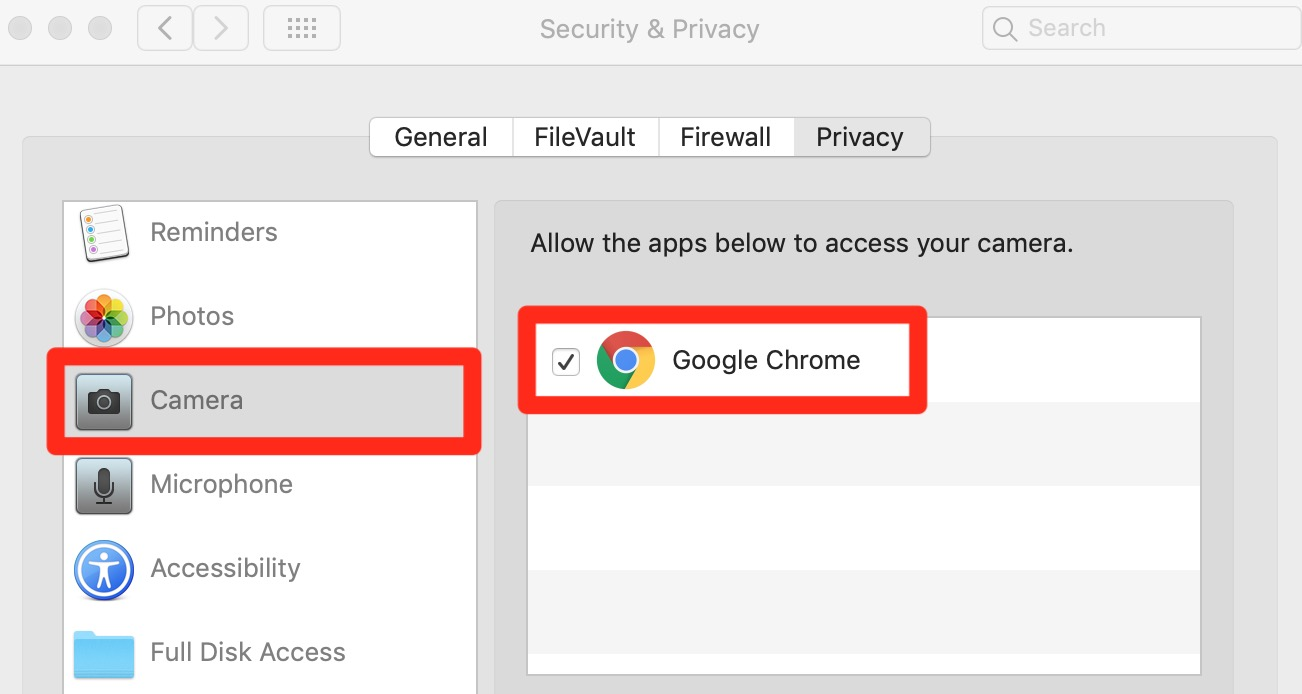
Click Camera in the left-hand menu and make sure the box next to Google Chrome (or your chosen browser) is ticked. Then click Microphone and do the same.
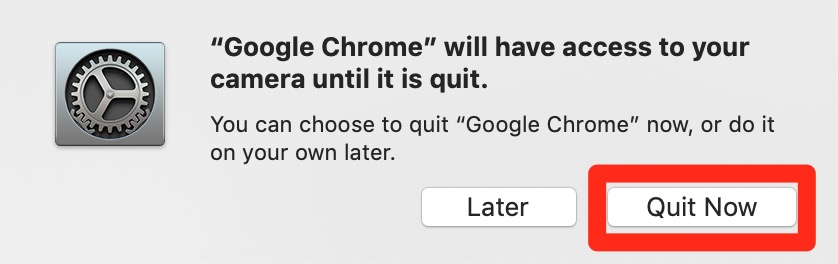
If prompted, click Quit Now to restart the browser. Once it reopens, log back into Lessonspace and check your camera and microphone again.
If you do not see Camera, Microphone or your browser listed, make sure your device is fully updated. To update macOS, go to Apple icon > About This Mac > Software Update. To update Chrome, click the three vertical dots in the top right corner of Chrome, then go to Help > About Google Chrome and install any available updates.