
Sound is not working in Chrome
If you cannot hear your student in Lessonspace and you have confirmed the issue is not on their end, the problem is usually related to your Chrome settings. Before making any changes, check that your speakers or headphones are connected properly and that your computer is not muted.
To check your Chrome sound settings, open Google Chrome.
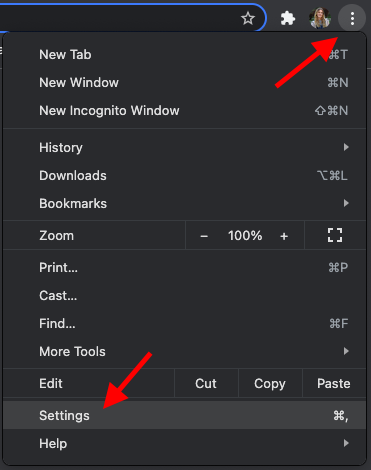
Click the three vertical dots in the top right-hand corner of the browser and select Settings.
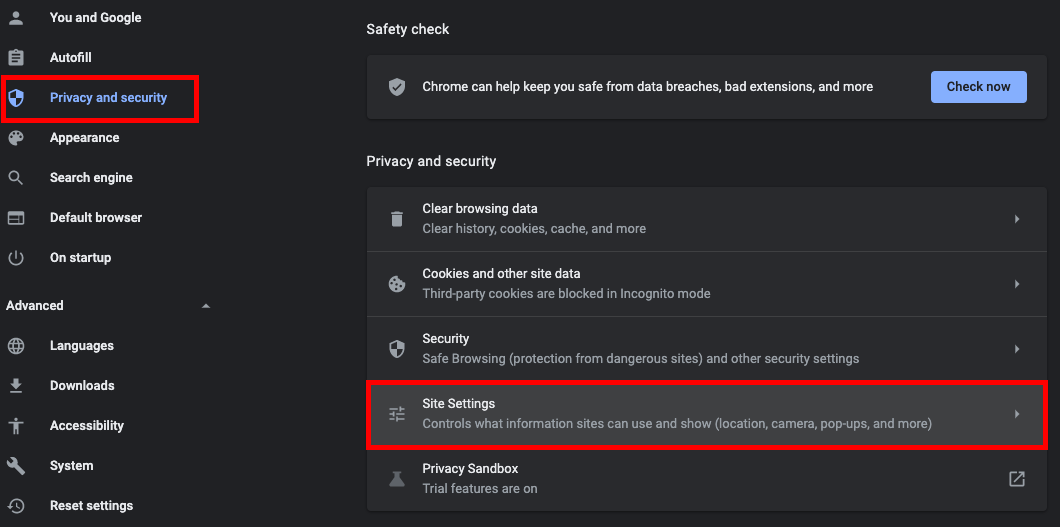
On the left-hand side, click Privacy and security, then select Site settings.
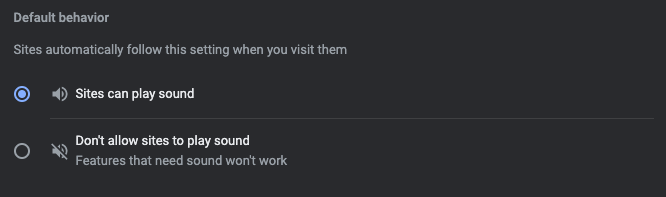
Scroll down and click Sound.

Make sure Sites can play sound is selected.
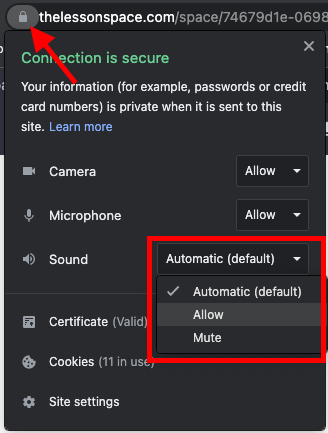
If Lessonspace has been blocked from playing audio, go to your Lessonspace tab, click the lock icon next to the website address in the URL bar, find Sound, and change it to Allow.
Refresh the page and rejoin your lesson to check if the issue has been resolved.