
How do I verify my examiner status?
If you’d like to display the examiner tick on your profile, you’ll need to upload proof so we can verify your status.
How do I upload proof?
Go to Edit Profile
Scroll down to Qualifications
Click Edit Qualifications
Scroll to the Other Experience section
Select Upload new file next to the examiner question
Click Save
Once suitable proof has been uploaded, we’ll review it and confirm your examiner status.
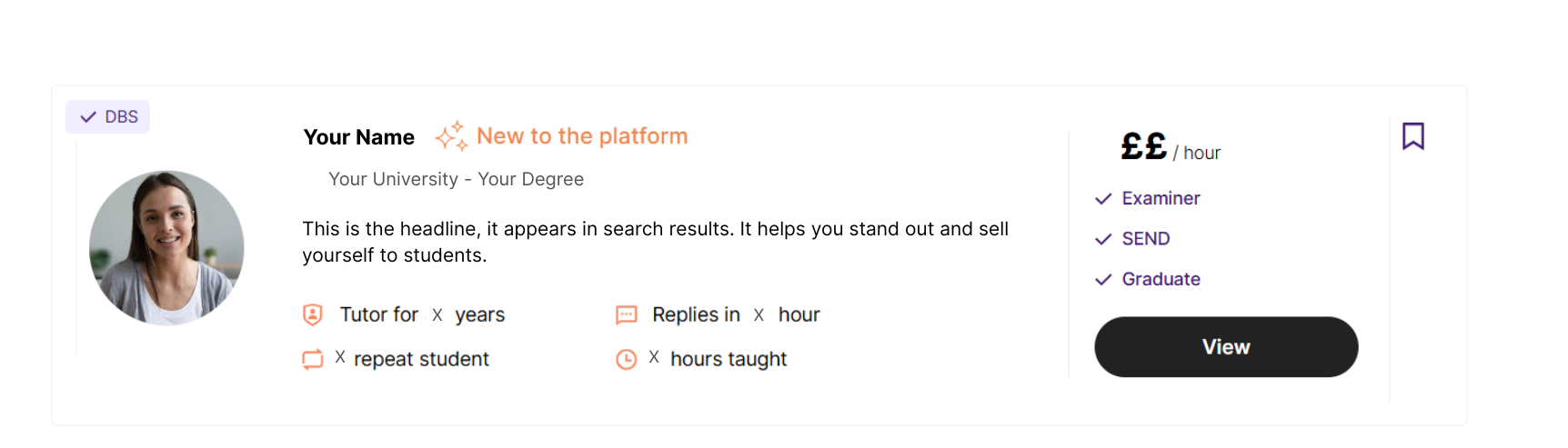
The examiner tick will then appear on your public profile as shown below:
What proof do I need to provide?
If you’d like to display the examiner tick on your profile, you’ll need to upload proof so we can verify your status.
To be eligible for the examiner tick, you must have been appointed as an examiner or completed professional marking for an exam board within the last five years.
We require official documentation issued by the exam board that:
Clearly shows your name
Confirms your role as an examiner
Shows that your examiner appointment or marking experience falls within the last five years
Examples of acceptable proof include:
An official examiner appointment or acceptance letter
A contract confirming your examiner role
Official correspondence confirming your examiner appointment
An official examiner badge or secure portal screenshot clearly showing your name and examiner status
What happens if my proof isn’t approved?
If the document you upload doesn’t meet these requirements, we’ll ask you to upload alternative proof.
This may be because:
No document was uploaded
The document does not include your name
The document does not confirm an examiner role, for example, it relates to another position
The document does not show that you were an examiner within the last five years
The image quality wasn’t clear enough to read
If you received an email from us explaining that your examiner proof wasn’t approved, you can use the View Document button in that email to check what was uploaded.