My camera or microphone isn't working on a Mac
If your tutor cannot see or hear you in Lessonspace, but you have already allowed access in your browser, your Mac’s privacy settings may be blocking your camera or microphone.
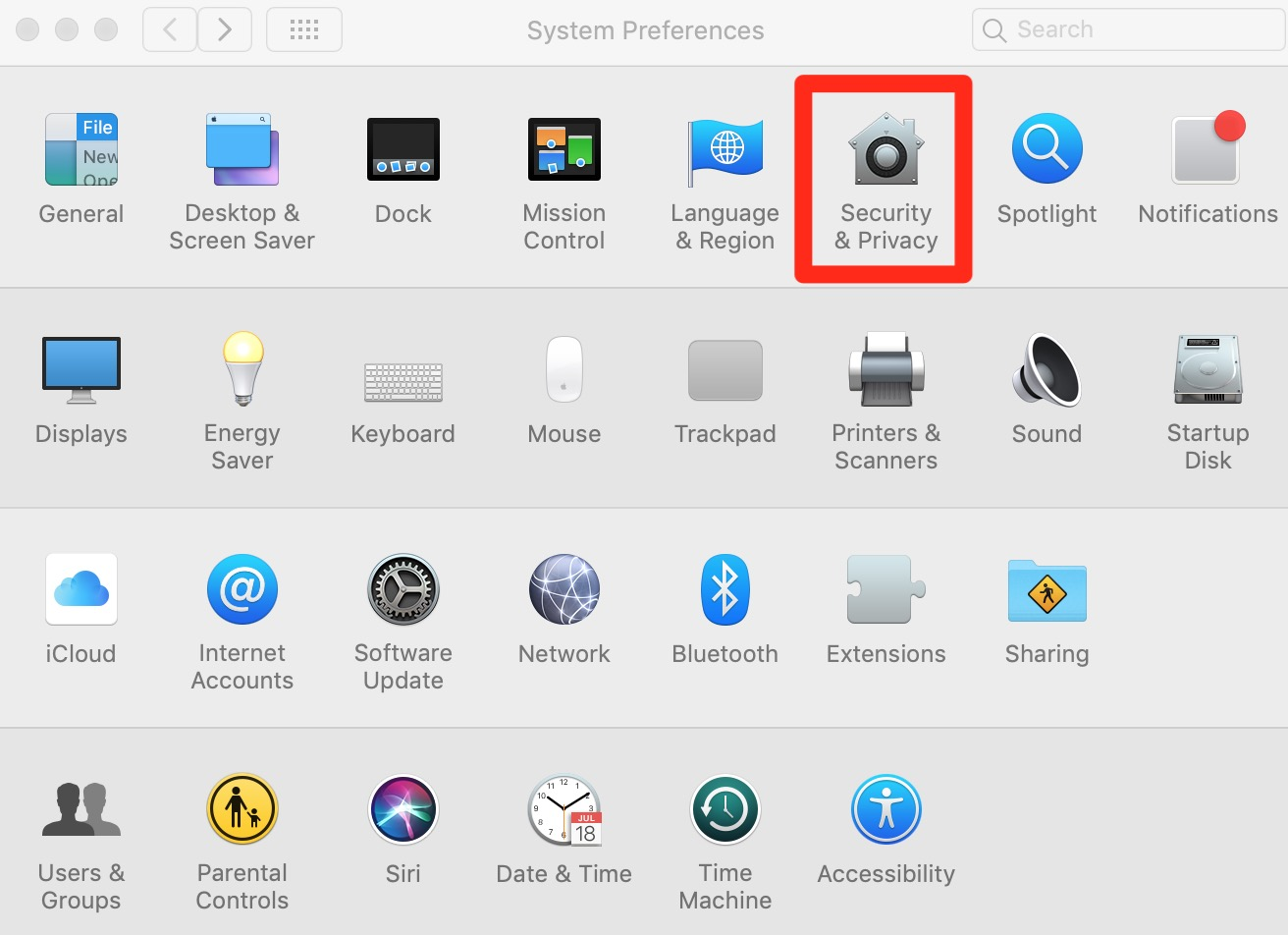
Click the Apple logo in the top left corner of your screen and select System Preferences (or System Settings). Choose Security & Privacy and then click the Privacy tab.
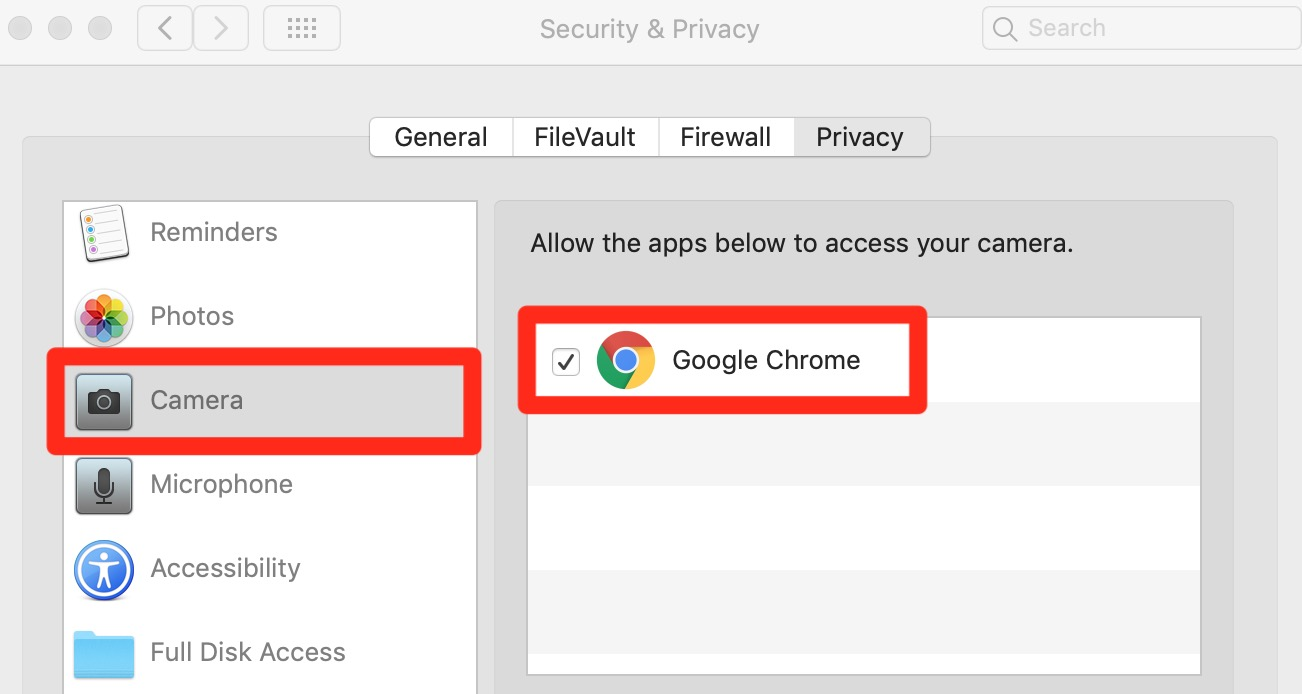
Select Camera from the menu on the left and make sure the box next to Google Chrome (or the browser you are using) is ticked. Then select Microphone and check that your browser is also ticked there.
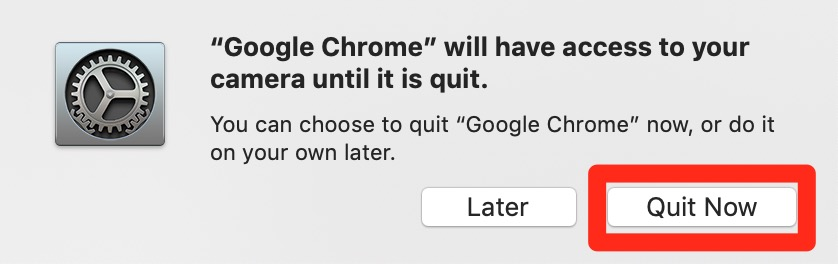
If a message appears asking you to restart your browser, click Quit Now. Reopen your browser and rejoin your lesson.
If you cannot see the Camera, Microphone or browser options, you may need to update your device. Go to Apple icon > About This Mac > Software Update to update macOS. To update Chrome, click the three vertical dots in the top right corner of Chrome, then go to Help > About Google Chrome and follow the update instructions.