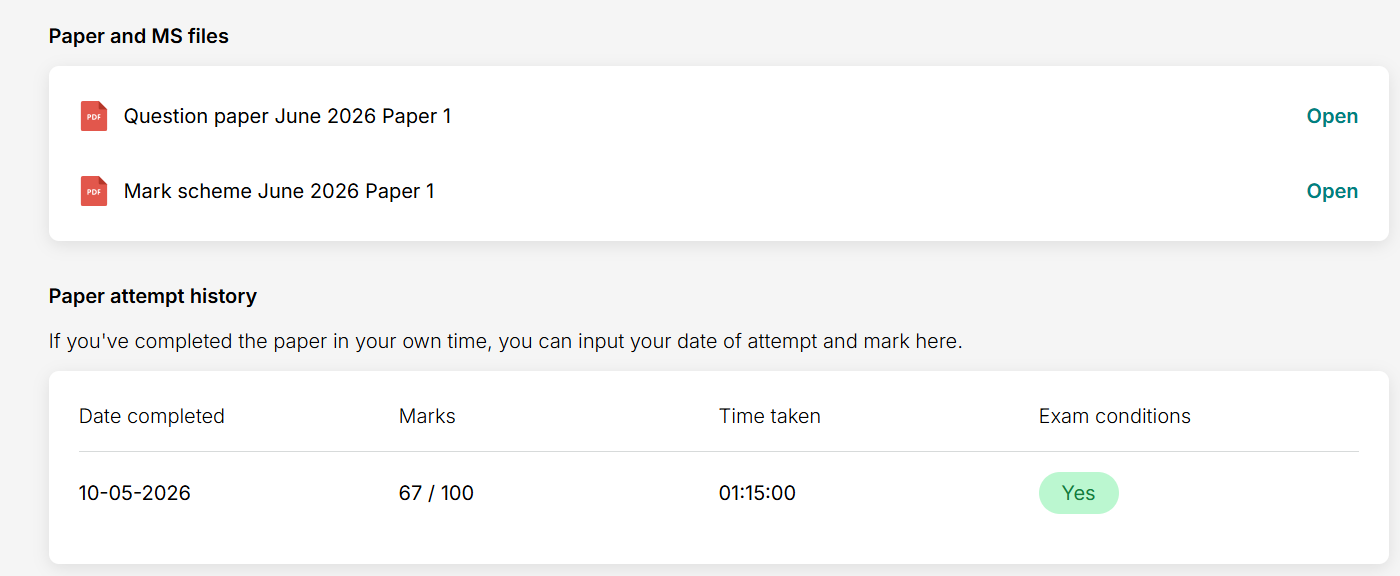
How do I log my mark on a paper?
1. Open the Resources Page
Go to the Resources page on the platform.
From the menu on the left-hand side, select either:
Predicted Papers
Mock Papers
If you’re unsure about the difference between these, see our FAQ for more information.
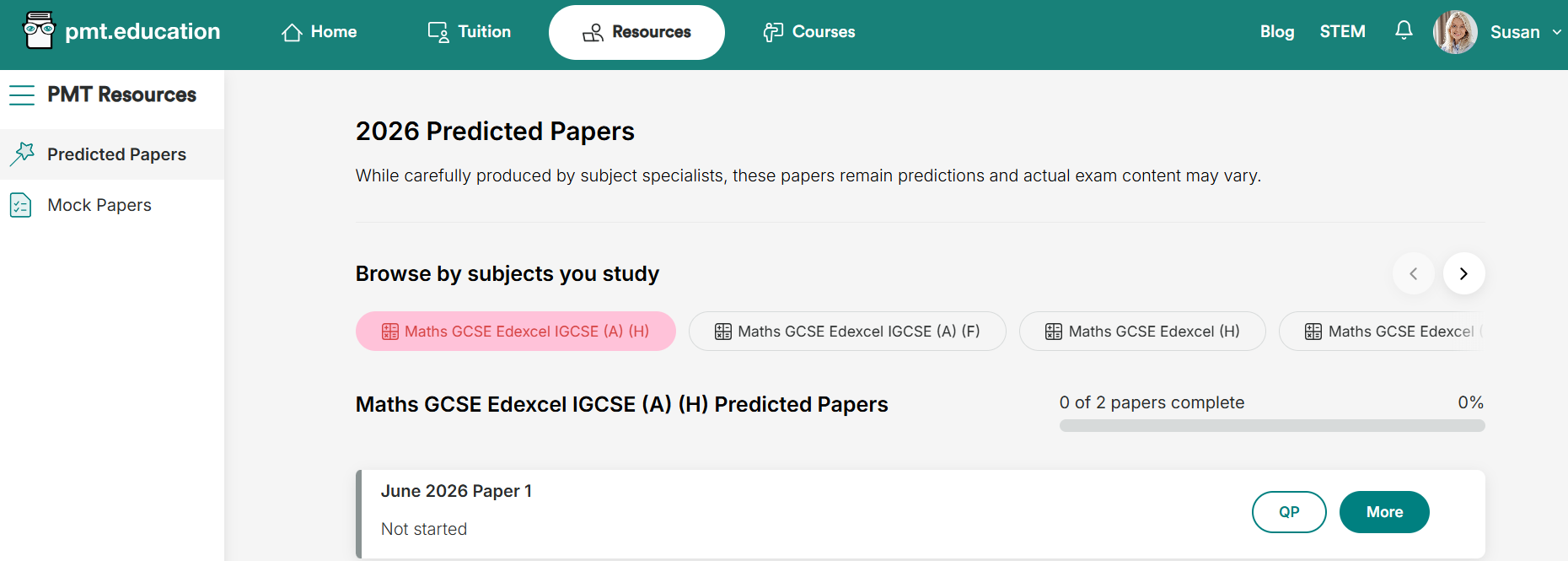
2. Choose Your Subject
You will see the subjects linked to your profile, including the:
subject
level (GCSE or A Level)
exam board
If your subjects are missing or incorrect, you can update them in Account > My Subjects. You can find out more about how to do this in our FAQ.
3. Open the Paper
Find the paper you want to complete.
Click QP to open the question paper directly.
Click More to view additional files and information for that paper.
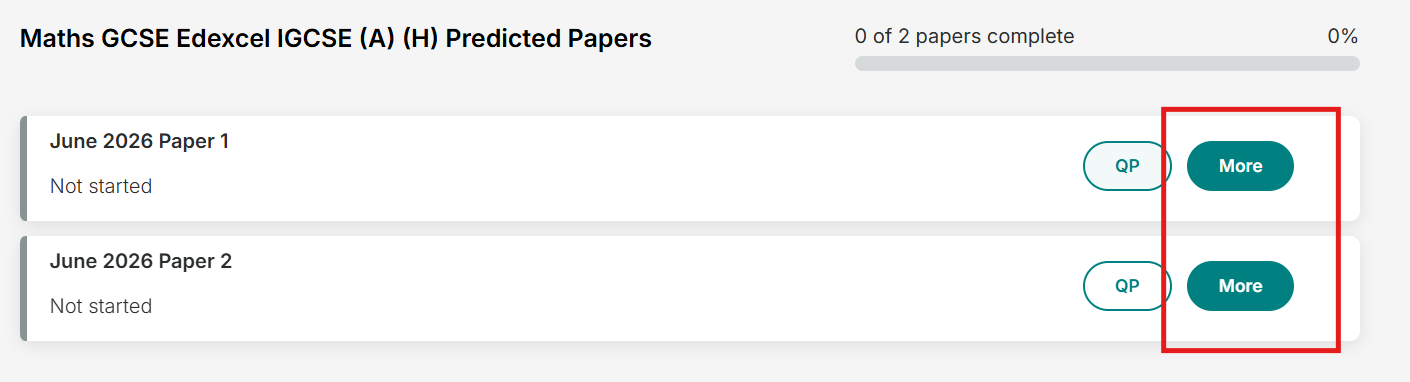
On the More page, you will be able to:
open the question paper
open the mark scheme
view your previous attempt history
log a new paper attempt
Use the mark scheme to mark your answers once you have completed the paper.

4. Log Your Attempt
Once you have marked your paper, click Add Manual Attempt.
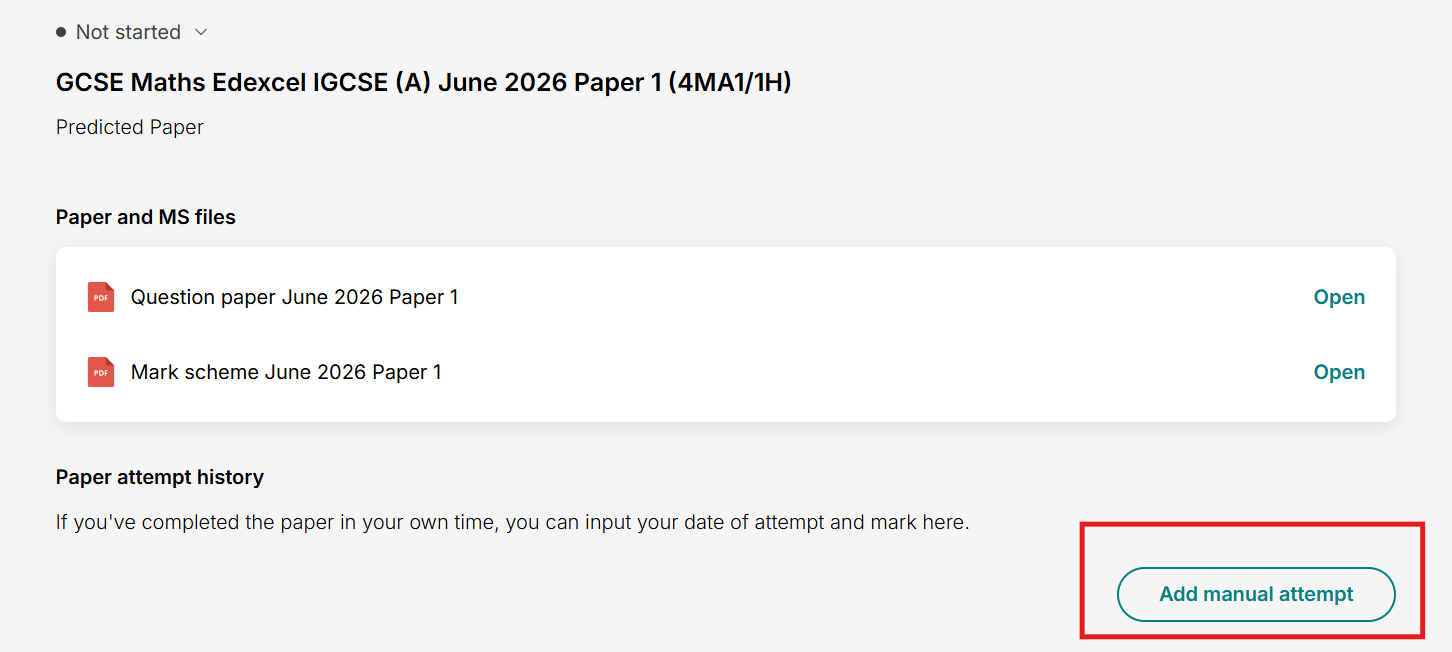
You will then be asked to enter:
the date you completed the paper
your mark/score
the time taken to complete the paper
whether you completed it under exam conditions
“Exam conditions” means completing the paper without using notes, revision materials, or outside help during the attempt.
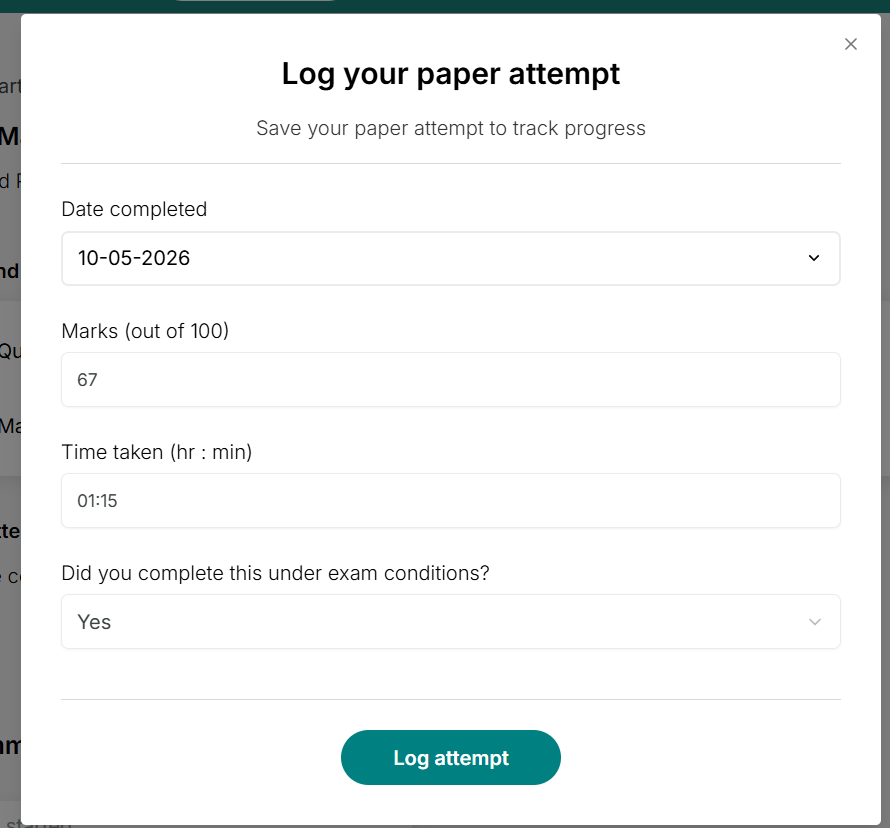
After entering your information, click Log Attempt to save your results.
5. Track Your Progress
Your previous attempts will be saved in your Paper Attempt History, allowing you to:
compare scores across multiple attempts
monitor your improvement over time
revisit papers for additional practice