Can I use my tablet with the online whiteboard?
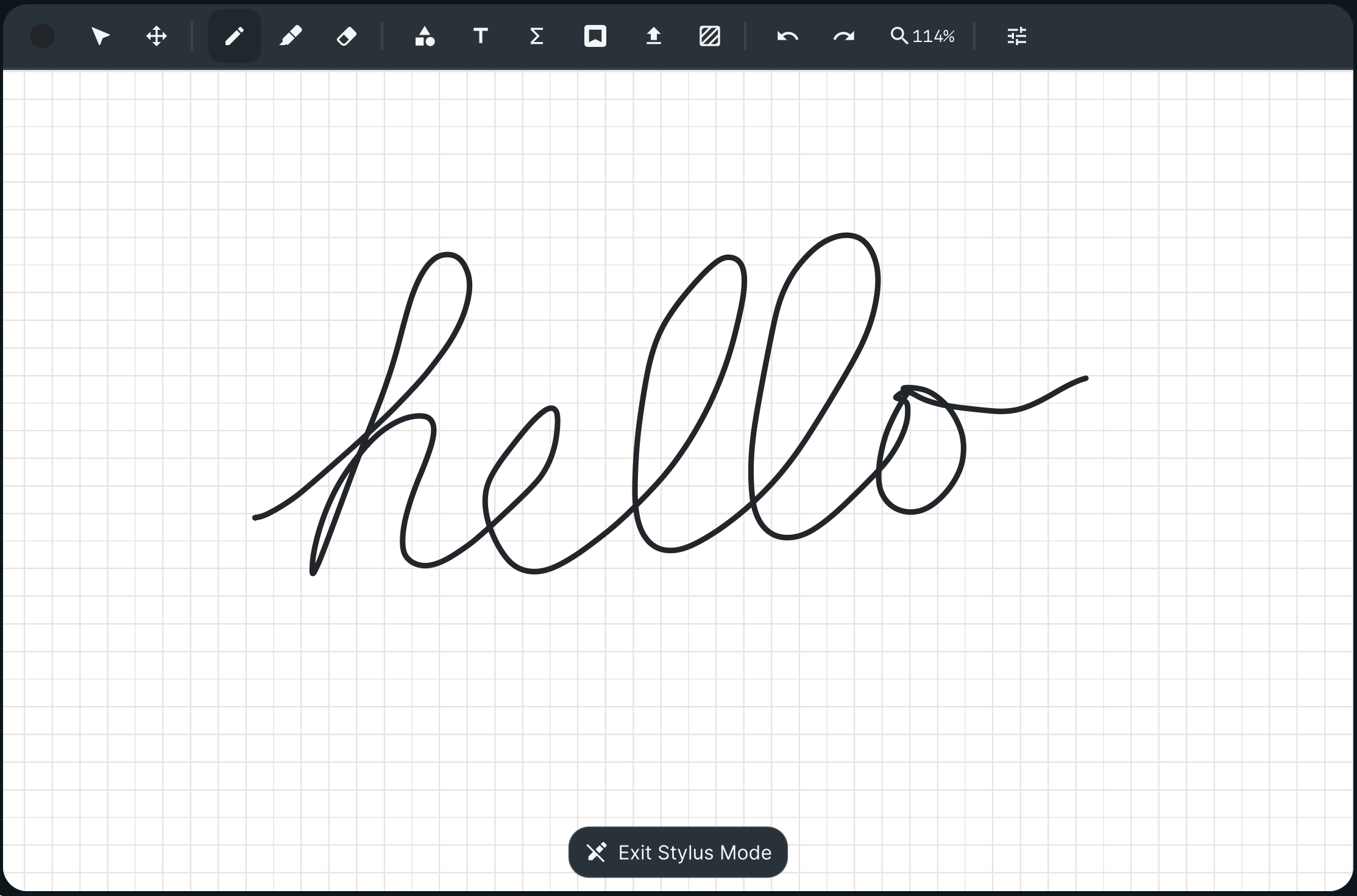
Yes! The online whiteboard is fully compatible with tablets and iPads. You can draw, highlight, add shapes, upload files and much more using your tablet. You can also use a stylus pen or Apple Pencil to make writing and drawing on the whiteboard easier.
We recommend using your tablet alongside your laptop or desktop, so you can use your computer's camera and microphone for video and audio, while writing and drawing on the whiteboard using your tablet.
How to join your lesson on both devices
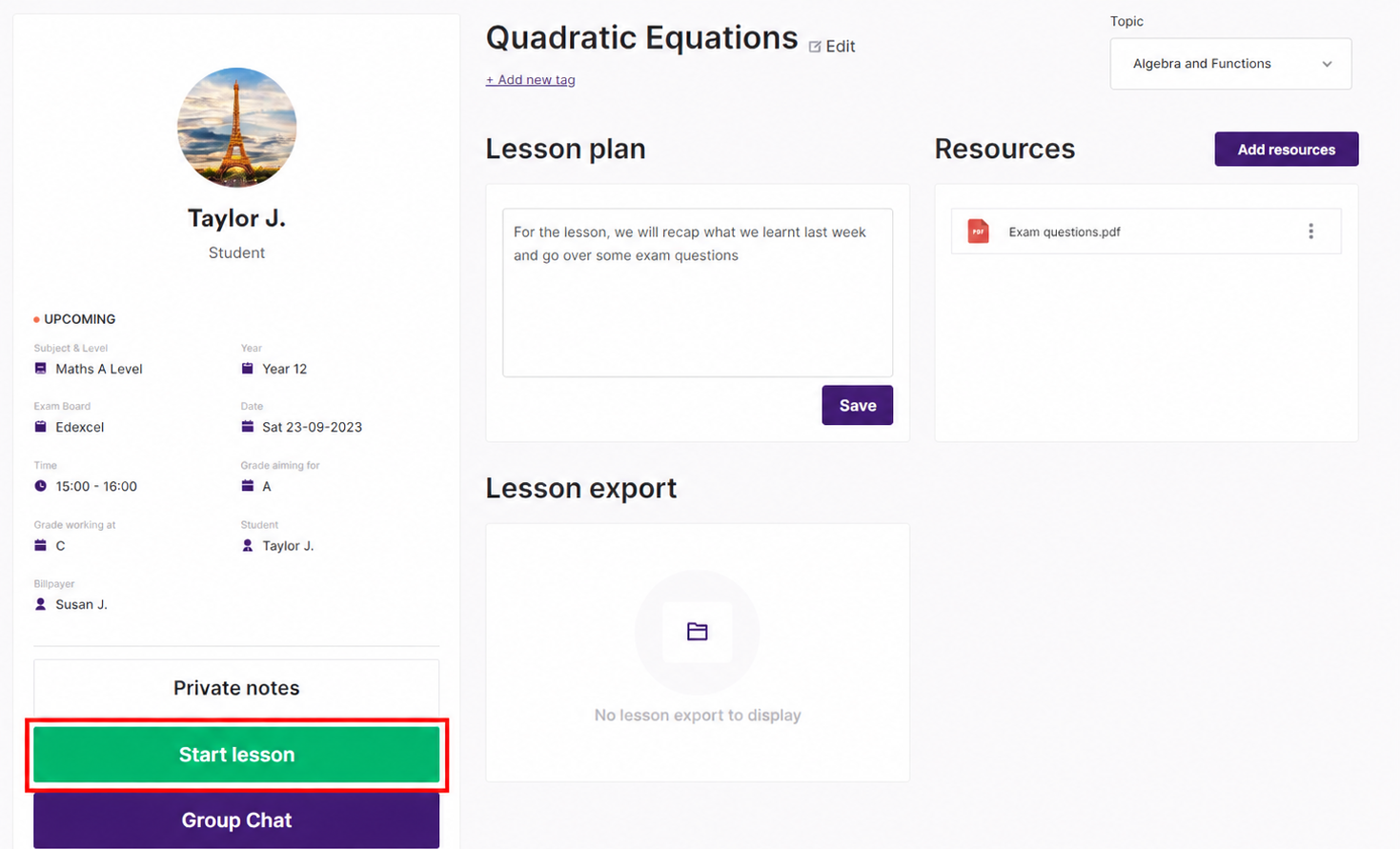
Log in to the tuition platform on your laptop or desktop, go to your Classroom and click Start lesson.
On your tablet or iPad, open the tuition platform in your browser and log in using the same account.
Navigate to your Classroom on your tablet or iPad and join the same lesson. If prompted, allow your browser access to your camera and microphone.
Once you've joined on both devices, mute your microphone and speakers on your tablet to prevent any echo or audio feedback. Keep your camera and microphone enabled on your computer.
Use your tablet or iPad to write, draw and interact with the whiteboard while continuing to communicate with your student through your computer.
Navigating the whiteboard on your tablet
On most tablets and iPads, you'll find the navigation bar at the bottom of the screen. From here, you can switch between Chat, Videos, Whiteboard and Participants.
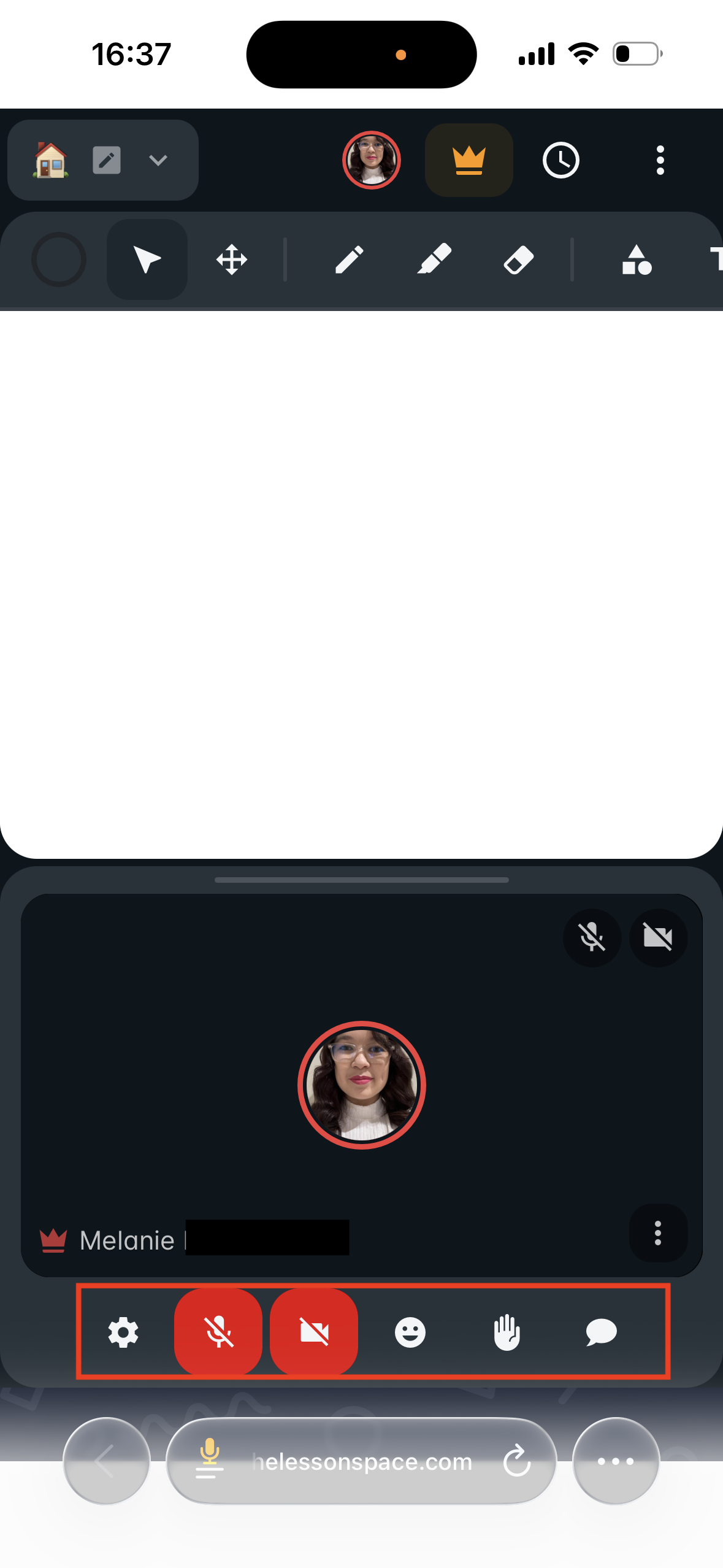
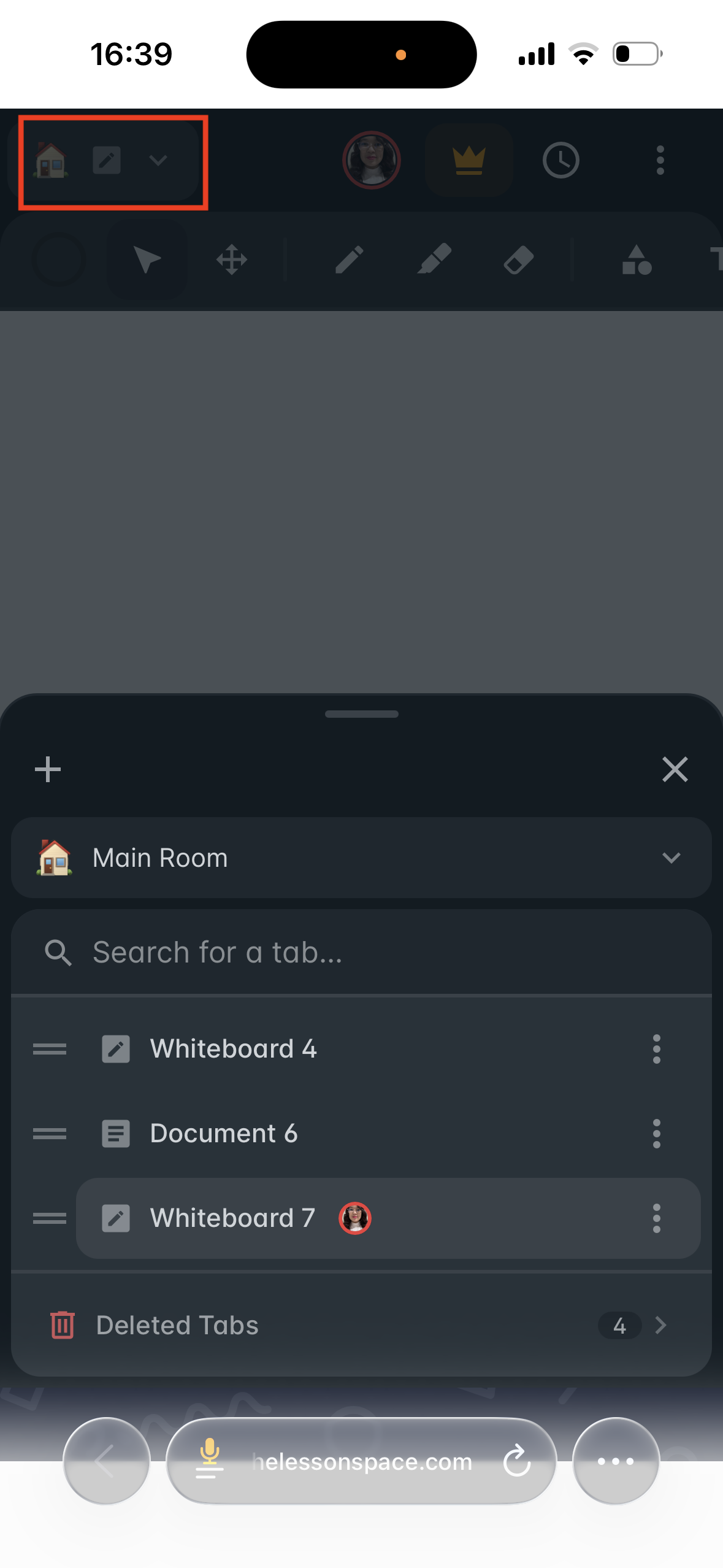
You can also select the house icon in the top-right corner to switch between available tabs or add new ones.
Please note that if you and your student are using devices with different screen resolutions, you may see slightly different parts of the whiteboard.
Using a stylus or Apple Pencil
If your tablet supports a stylus pen or Apple Pencil, you can use it to write and draw on the whiteboard.
On supported touchscreen devices, the whiteboard automatically switches to stylus mode when a stylus is detected. This makes handwriting smoother and helps prevent accidental marks from your palm while writing.
You can exit stylus mode to return to finger gestures.