
How do tutors suggest lessons for me to book?
Tutors can’t book lessons on your behalf, but they can suggest lessons for you to book.
A lesson suggestion allows your tutor to propose lesson slots based on their availability. These suggestions can be for:
A single lesson, or
A recurring block of lessons (weekly lessons at the same time)
You can then review the suggestion and choose how to respond.
Where you’ll see lesson suggestions
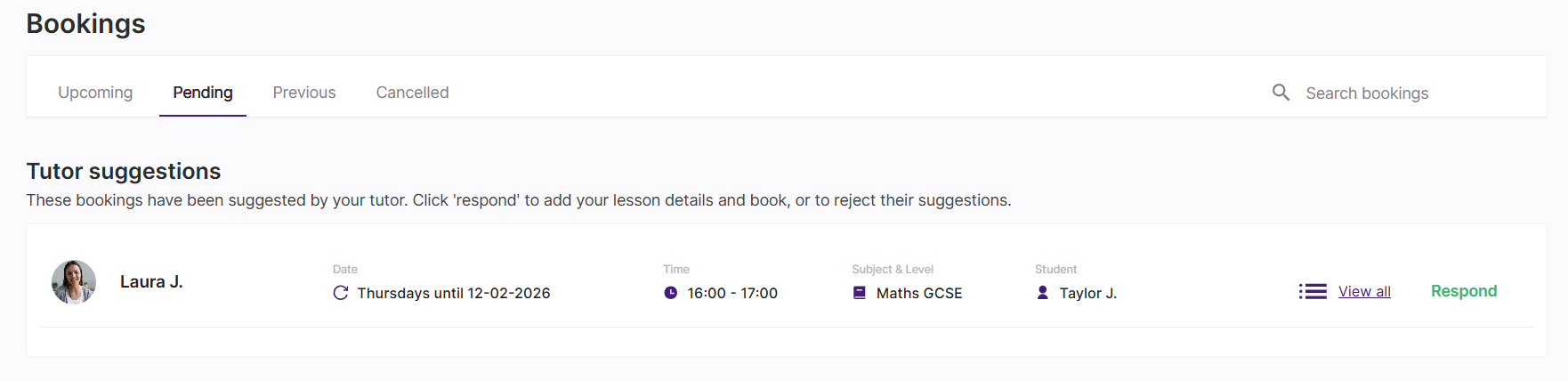
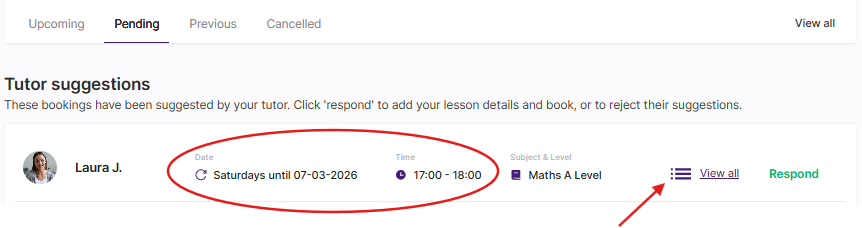
When your tutor sends a lesson suggestion, it will appear in the Pending tab of your Bookings, under Tutor suggestions.
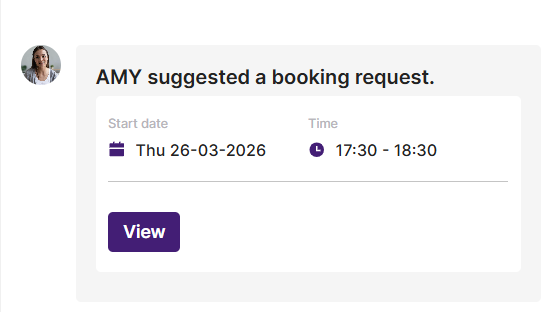
You'll also get a message in the chat outlining the lesson(s) they’ve suggested.
You’ll also receive an email to let you know a tutor has sent you suggested lesson times.
Responding to a lesson suggestion
You can Respond to a lesson suggestion in one of two ways:
Add details and book the lesson, or
Reject the lesson suggestion
The steps and options available depend on whether the lesson suggestion is for a single lesson or a recurring block of lessons, which are explained below.
Single lesson suggestion
Confirming a lesson suggestion
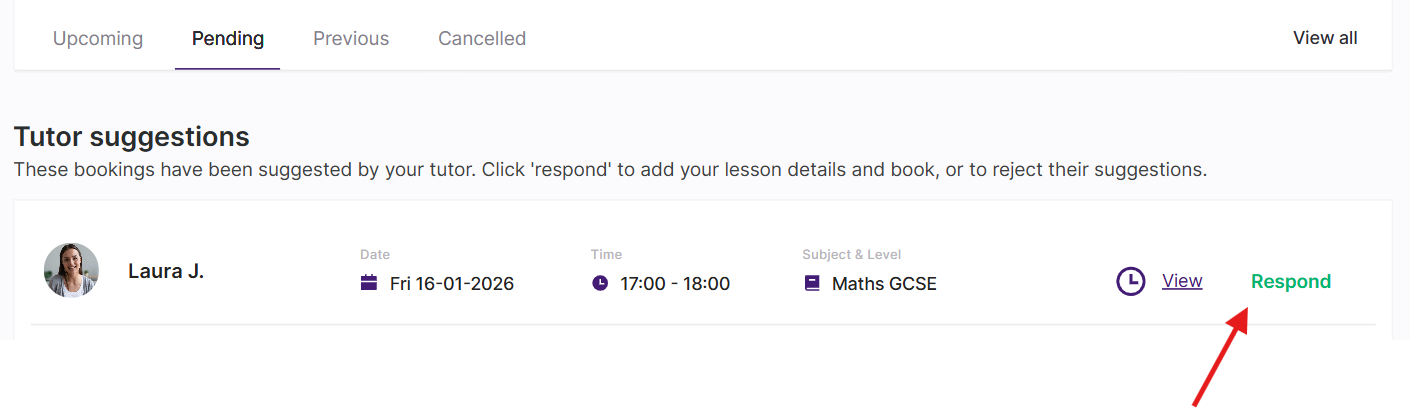
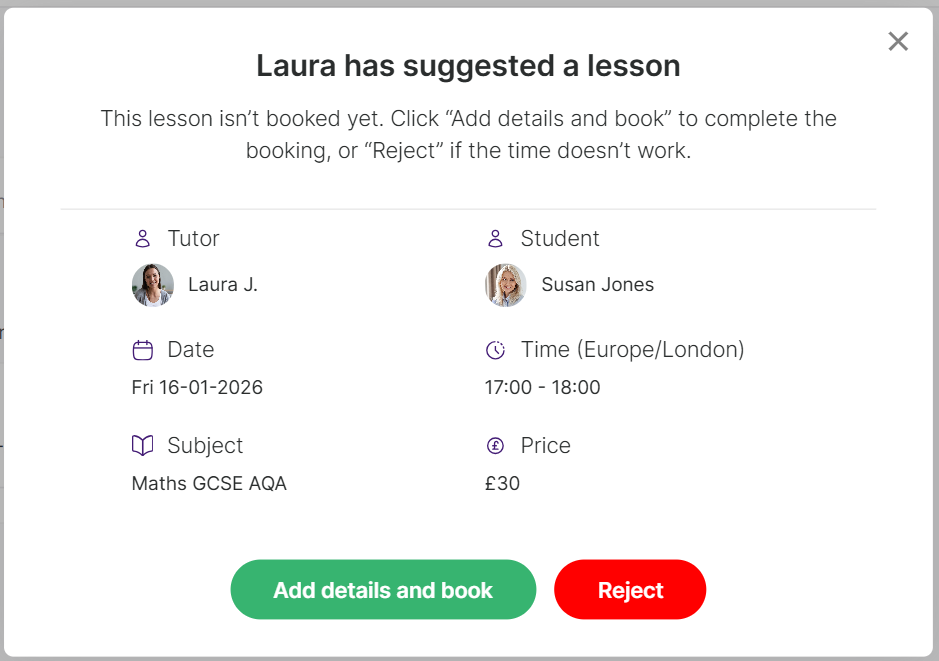
If you would like to book the lesson, click Respond
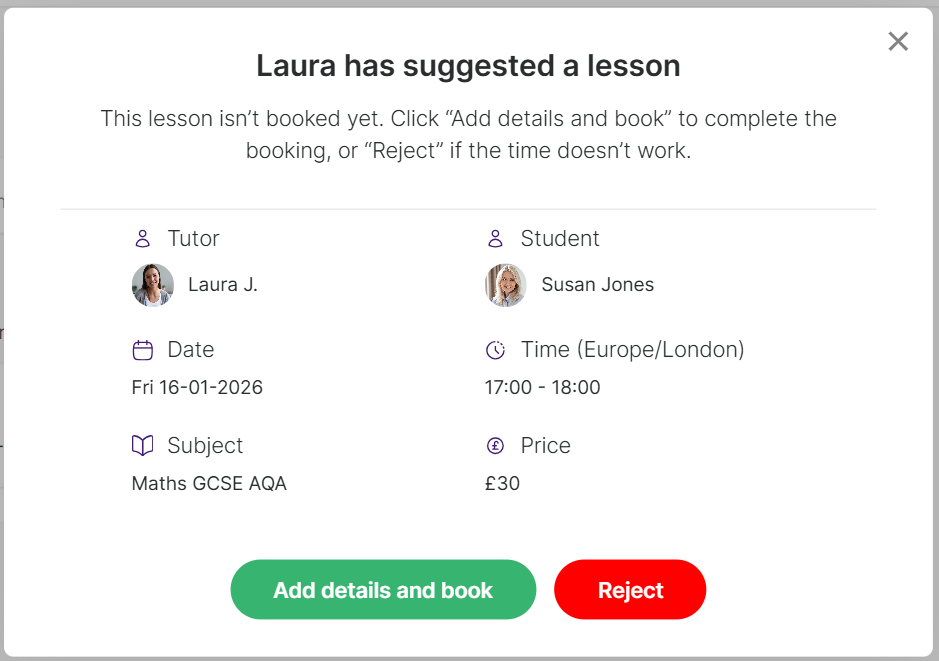
You’ll be shown more lesson information in a pop-up. Click Add details and book.
From there, you'll be shown a booking form where you'll need to:
Review and complete any missing lesson details
Add or select your payment information
Accept the platform’s terms and conditions
Once confirmed, the lesson will be booked straight away and will move to the Upcoming tab in your Bookings.
Rejecting a single lesson suggestion
If you can't do the lesson, click Respond on the lesson suggestion and then select Reject
You’ll be prompted to give a short reason for rejecting the lesson. Click Reject again to confirm.
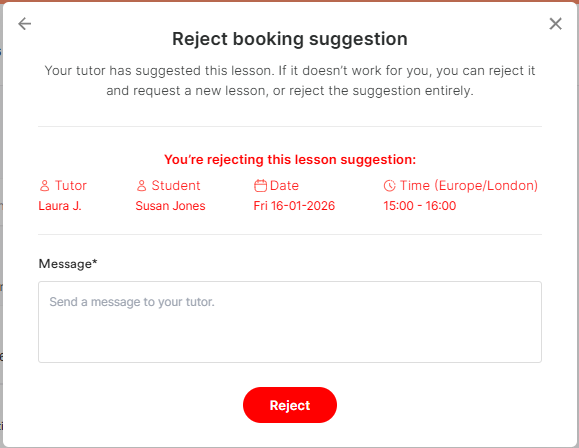
The lesson suggestion will be declined and your tutor will be notified.
If you’d still like to book lessons with that tutor, you can:
Submit a new lesson request with different dates or times, or
Ask your tutor to send a new lesson suggestion
Recurring lesson suggestions
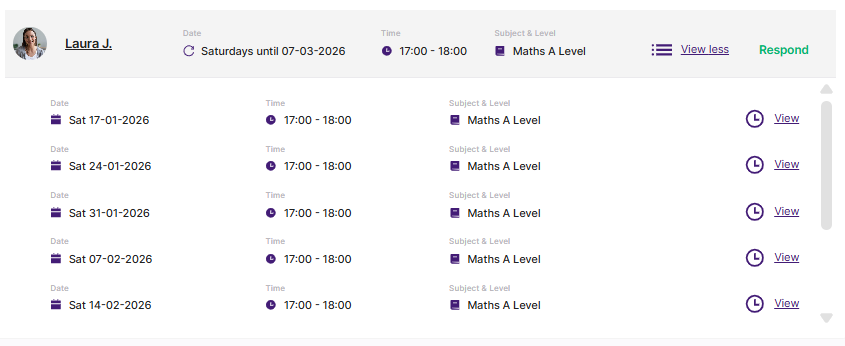
You can view the weekly slot and when it runs to. To see all the each individual session in the block click View all.
This will show the lessons below:
Confirming a recurring lesson suggestion
In the lesson suggestion click Respond, this will bring up a pop-up confirming the lessons in this block.
If you can't make any of the individual sessions Reject them. Then, to confirm the rest of the lessons press the green Add details and book button.
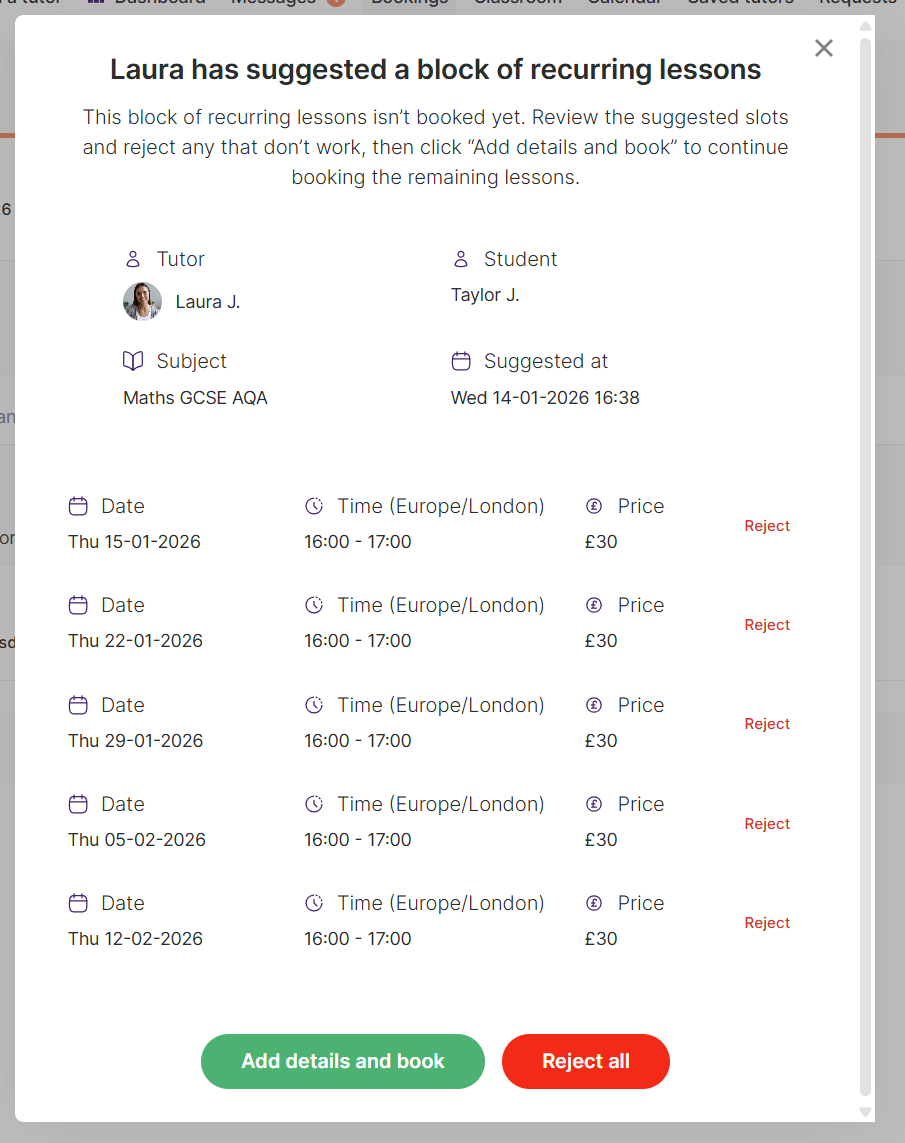
From there, you'll be shown a booking form where you'll need to:
Review and complete any missing lesson details
Add or select your payment information
Accept the platform’s terms and conditions
Once confirmed, the lessons will be booked straight away and will move to the Upcoming tab in your Bookings.
Rejecting a recurring lesson suggestion
If you can’t do the block of recurring lessons, click Respond on the lesson suggestion and then select Reject all.
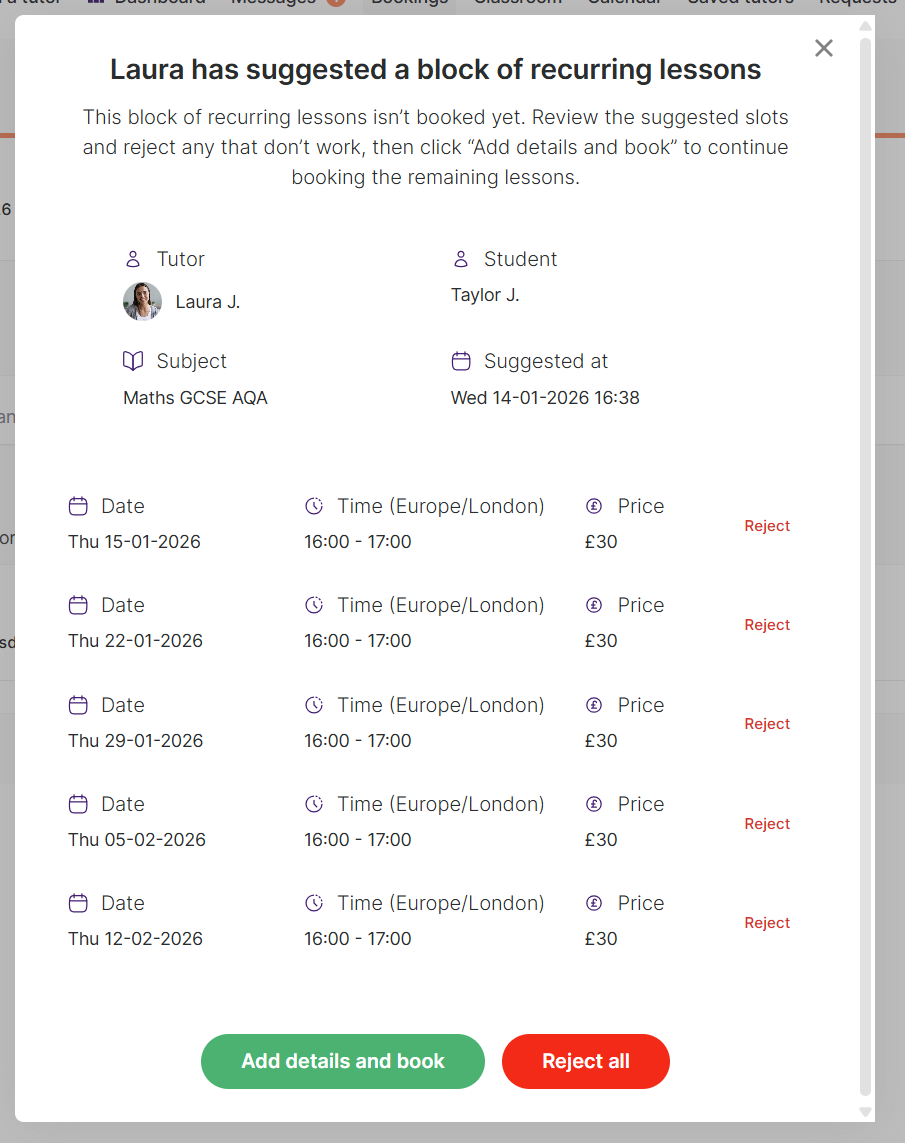
This will bring up a pop up where you’ll be prompted to give a short reason for rejecting the suggestion. Click Reject all again to confirm.
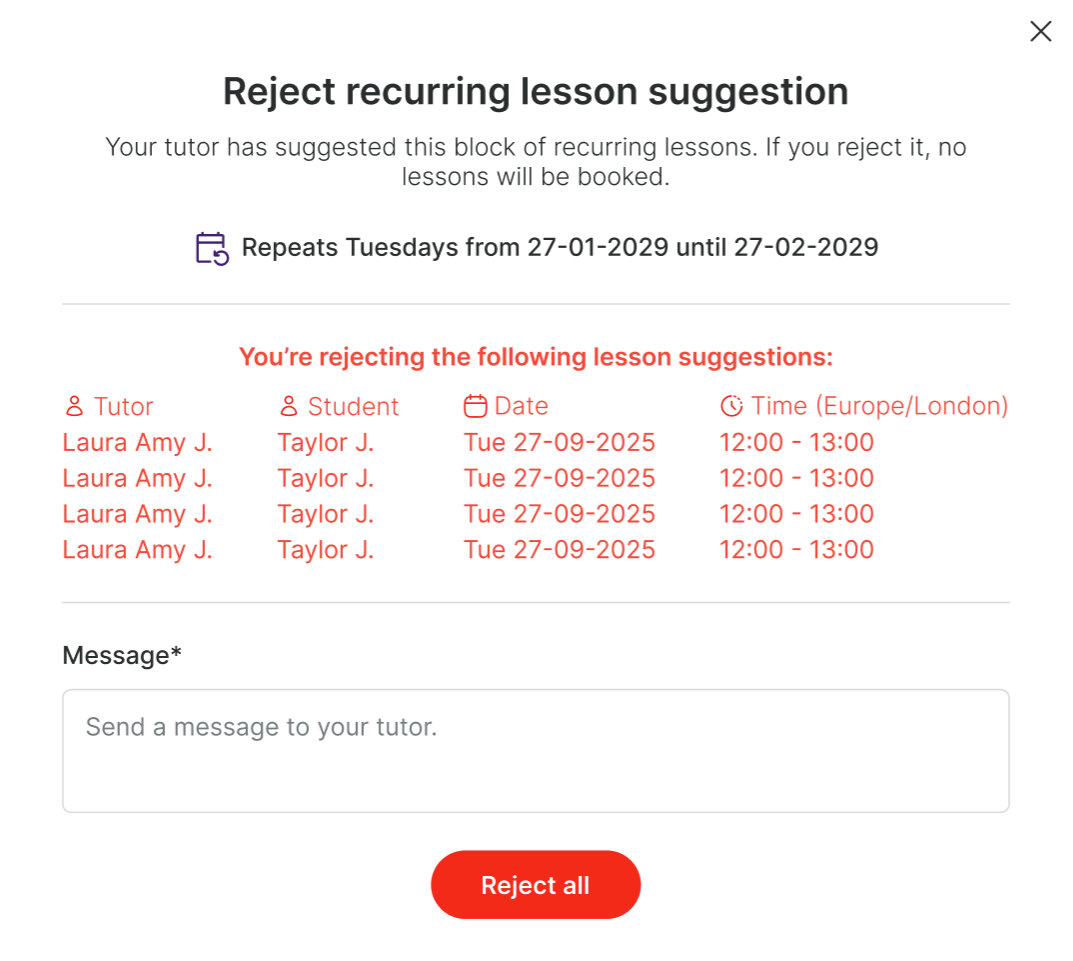
The recurring lesson suggestion will be declined and your tutor will be notified.
Want to book a recurring lesson at a different time to the suggestion?
If you’d still like to book lessons with that tutor, you can:
Submit a new lesson request with different dates or times, or
Ask the tutor to send a new lesson suggestion